


CapCut - Video Editor Summary
Get From the Official Digital Markets
All trademarks belong to their
respective owners.
I opened CapCut expecting a quick TikTok-style editor, but it has grown into something much bigger than a simple app for trimming short clips. CapCut still feels friendly enough for beginners, which is one of its strongest advantages, but the toolset now reaches far beyond basic cuts. I can trim, split, merge, add captions, use templates, apply effects, clean up audio, remove backgrounds, create social videos, build short ads, edit talking-head clips, and experiment with AI tools without starting in a heavy professional timeline. That is the real appeal of CapCut: it makes video editing feel fast. Not always perfect, not always fully professional, but fast enough that ideas can become publishable content before the excitement disappears.
The First Impression Is Built Around Speed
CapCut understands the modern creator problem very well. People do not always need a huge editing suite. Sometimes they need to cut a clip, add captions, match a trend, resize for social platforms, place music, improve pacing, and export quickly. CapCut is built around that speed. The interface feels designed for people who want to finish videos, not spend an afternoon learning where every tool lives.
I like that the app does not make editing feel intimidating. A beginner can import a clip, trim the weak parts, add text, choose a transition, and publish something presentable very quickly. That makes CapCut especially useful for creators who post often: TikTok videos, Instagram Reels, YouTube Shorts, product clips, reaction videos, tutorials, lifestyle edits, gaming highlights, and small business promos.
The Basic Editing Tools Are Simple, but They Cover Most Everyday Needs
The core editing tools are exactly what most casual and semi-serious creators need. Google Play lists basic functions such as trimming, shortening clips, splitting, merging, and adjusting playback speed, while App Store also highlights easy-to-use editing functions, keyframe animation, smooth slow-motion, chroma key, and stabilization. These are not exotic features, but they are the foundation of almost every short video workflow.
I find CapCut strongest when I need to move quickly from raw footage to a clean edit. Cutting dead space, rearranging clips, adding music, adjusting timing, and placing simple overlays all feel direct. It does not have the same traditional professional feel as tools like Premiere Pro, DaVinci Resolve, or Final Cut Pro, but that is not the point. CapCut’s strength is that the common editing actions feel accessible.
-
Trimming and splitting make rough footage easier to shape;
-
Speed controls help create slow-motion, quick cuts, and social pacing;
-
Stabilization can improve shaky mobile footage;
-
Keyframes give creators more control over movement and animation;
Templates Are the Shortcut That Made CapCut So Popular
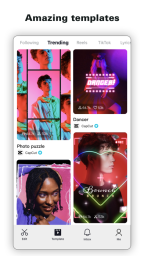
Templates are one of CapCut’s biggest growth engines. They let users create polished-looking videos without building every edit from scratch. For social media, that matters. Trends move quickly, and many creators want to participate before the format feels old. A template can turn a group of photos, short clips, or product shots into something that already feels native to TikTok or Reels.
I like templates when they help speed up production without making everything feel identical. They are especially useful for beginners, small businesses, fan edits, lifestyle creators, and anyone who wants rhythm, transitions, and visual structure without understanding every editing decision behind the result. The downside is that popular templates can become overused. When everyone uses the same timing and transitions, the result may look polished but not unique.
Auto Captions Are One of the Most Practical Features
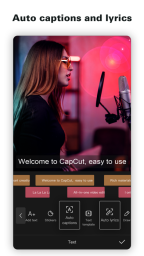
Auto captions are not just a decorative feature. They are now essential for social video because many people watch with sound off, scroll quickly, or need text support to follow spoken content. Google Play lists auto captions and speech recognition among CapCut’s unique features, while the official site promotes CapCut as an AI-powered editor for social platforms.
I find auto captions especially useful for talking-head videos, tutorials, interviews, commentary, educational clips, and short ads. The feature saves a lot of manual work. Instead of typing every sentence, I can generate captions, edit mistakes, style the text, and focus on pacing. Captions also make a video feel more finished, even when the footage itself is simple.
-
Captions improve accessibility and watchability;
-
Auto generation saves time on talking-head edits;
-
Styled captions help videos feel more native to TikTok and Reels;
-
Manual review is still important because speech recognition can make mistakes;
AI Tools Push CapCut Beyond a Normal Mobile Editor
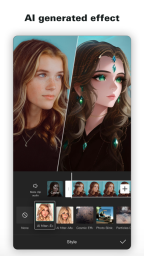
CapCut has become strongly associated with AI editing. Its official site describes AI-powered video editing, smart templates, creative effects, AI design, AI image generation, and a Video Studio where a chat-based AI editor can help build videos from scratch. This is where CapCut feels less like a traditional app and more like a creator toolkit.
I like the AI features most when they remove boring technical work. Background removal, auto captions, text-to-speech, motion tracking, noise reduction, and AI-assisted effects can help creators move faster. They are not magic buttons that make every video good, but they reduce friction. The creator still needs taste, timing, structure, and a clear message. AI helps with production speed, not with deciding why the video should exist.
Background Removal Is Surprisingly Useful for Everyday Content
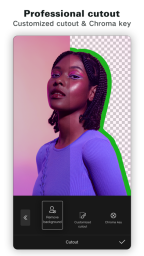
Background removal is one of those features that sounds flashy but turns out to be practical. Google Play specifically mentions background removal alongside auto captions, text-to-speech, and motion tracking. For creators, this can help make product clips, reaction videos, thumbnails, memes, explainers, and short ads without needing a green screen.
I would not expect every background removal result to look flawless, especially with messy hair, motion blur, low light, or busy backgrounds. But for quick social content, it can be more than good enough. The feature helps creators create layered visuals quickly: a person over gameplay, a product over a colorful background, a cutout reaction over a trend, or a presenter over a branded layout.
Text-to-Speech and Voice Tools Support Fast Content Production
Text-to-speech is another feature that fits CapCut’s social-first identity. It lets creators build narrated videos without recording their own voice every time. That is useful for list videos, faceless channels, quick explainers, memes, tutorials, and short informational clips. It also helps creators who feel uncomfortable recording narration or need a fast placeholder voice.
I think voice tools are best when used carefully. A robotic or overused voice can make a video feel generic, but a clean voiceover can improve clarity. CapCut’s advantage is convenience. The tool sits close to the edit, so I do not need to jump between several apps just to create a short narrated clip.
-
Text-to-speech helps faceless creators produce content faster;
-
Voice tools can support tutorials, explainers, and short ads;
-
Audio cleanup can improve rough mobile recordings;
-
Overused voices may make videos feel less original;
Effects and Transitions Are Fun, but They Need Restraint
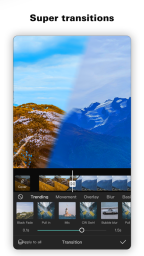
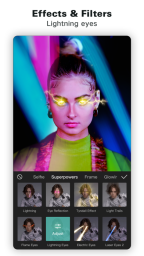
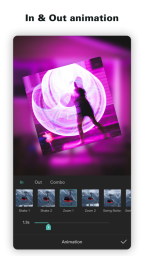
CapCut offers a huge library of effects, filters, transitions, stickers, fonts, and visual assets. Google Play and CapCut’s own Pro pages emphasize effects, transitions, audio assets, fonts, templates, and creative tools for polished content. That variety is useful, but it can also be dangerous.
I enjoy effects when they support the video’s rhythm. A transition can make a cut feel smoother. A filter can make clips feel consistent. A zoom can add energy. But too many effects make a video look noisy and amateur. CapCut gives creators a lot of toys, and the best results usually come from choosing fewer of them with better timing.
The App Is Especially Strong for Short-Form Social Video
CapCut feels naturally connected to TikTok, YouTube Shorts, Instagram Reels, WhatsApp, Facebook, and other social platforms. Google Play explicitly mentions creating videos for TikTok, YouTube, Instagram, WhatsApp, and Facebook. That social-first direction shapes the whole app.
I think CapCut is strongest for vertical video. The pacing, templates, captions, text styles, effects, and export mindset all fit short-form content. A creator can shoot on a phone, edit on the same device, add captions, choose a sound, and publish without transferring files to a desktop. That workflow is exactly why CapCut became so important for creators who post often.
-
Vertical video tools fit TikTok, Reels, and Shorts workflows;
-
Templates help creators react quickly to trends;
-
Caption styles match modern social video habits;
-
Mobile editing makes production possible without a desktop setup;
CapCut Also Works for Small Business Marketing
CapCut is not only for influencers or casual creators. I can see why small businesses use it for product videos, service promos, before-and-after clips, testimonial edits, ad creatives, educational reels, and simple branded content. The app helps non-editors make videos that feel current without hiring a full production team for every small asset.
For marketing, speed matters. A business may need five different short videos for testing, not one perfect cinematic edit. CapCut supports that kind of output. It is useful for making variations: different hooks, different captions, different music, different product angles, different CTAs. That makes it especially relevant for performance marketing and organic social growth.
The Desktop and Online Options Make It More Than a Phone App
CapCut is no longer only a mobile editor. The official site promotes CapCut across desktop, mobile, and online editing. This matters because creator workflows are not always limited to one device. Sometimes I want to make a quick edit on my phone. Other times I want a bigger screen, easier file management, or more comfortable timeline control.
I like that CapCut can support different levels of commitment. A casual creator can stay mobile. A more serious creator can use desktop or online tools. A team or marketer can use cloud and asset workflows when available. This flexibility helps CapCut feel like an ecosystem rather than a single app icon.
CapCut Pro Adds Power, but It Also Changes the Value Question
CapCut has a free version, but many advanced tools and premium resources are tied to CapCut Pro. CapCut’s own help content says Pro typically offers monthly and yearly subscription plans with access to premium features, templates, and advanced tools. Its comparison pages also describe Pro features such as advanced AI tools, premium templates, exclusive effects, premium stock resources, cloud storage, and collaboration or team features.
I understand why Pro exists. CapCut has become powerful enough that subscription features make business sense. But the value depends on the user. A casual creator may not need Pro every month. A social media manager, editor, YouTuber, marketer, or creator posting daily may get much more value from premium templates, stock assets, AI tools, and cloud support. The key is to subscribe because the features save time, not because every export feels blocked.
-
Free tools are enough for many simple edits;
-
Pro can be valuable for frequent creators and marketers;
-
Premium templates and assets can speed up production;
-
Subscription value depends heavily on how often the user edits;
The Interface Is Friendly, but the Feature Count Can Feel Crowded
CapCut is easy to start, but it has become much larger over time. That creates a strange tension. The app is beginner-friendly, yet it contains so many tools, AI features, effects, assets, templates, buttons, and premium labels that new users can still feel overwhelmed. It is simple at the surface, crowded underneath.
I think the best way to use CapCut is to learn it in layers. Start with trim, split, captions, music, and export. Then add keyframes, background removal, audio cleanup, color adjustments, and templates. Then explore AI tools and Pro features only when there is a real need. Trying everything at once can make the app feel more confusing than it has to be.
The Editing Quality Still Depends on the Creator
CapCut can make videos look polished quickly, but it cannot automatically make a weak idea strong. This is important. Templates, captions, effects, transitions, and AI tools help with presentation. They do not replace a strong hook, clear story, good pacing, useful information, or emotional reason to keep watching.
I like CapCut most when it supports a creator’s own judgment. A good editor still needs to decide what to remove, where the strongest moment begins, how fast the pacing should be, which caption style fits the mood, and whether a trend actually matches the message. CapCut gives speed, but taste still matters.
The Privacy and Platform Questions Are Worth Noticing
CapCut is popular, but users should be aware that video editing apps often involve personal media, cloud storage, account data, and platform integrations. TechRadar’s 2026 beginner video editor guide highlighted CapCut as a strong mobile tool, especially for TikTok users, while also noting privacy concerns. I would not ignore that part, especially for creators editing client work, children’s content, sensitive footage, or business assets.
For casual public content, this may not feel like a major issue. For professional or sensitive projects, I would check app permissions, cloud settings, export workflows, and account policies carefully. CapCut is convenient, but convenience should not mean uploading everything without thinking.
-
Personal videos may include private moments, locations, or faces;
-
Cloud tools can be useful but should be managed carefully;
-
Client or business projects may require stricter privacy habits;
-
Creators should review permissions and storage settings before serious use;
The App Is Excellent for Beginners Who Want Quick Results
CapCut is one of the easiest recommendations for people who want to start editing without feeling punished by professional software. It gives enough guidance, templates, and automation to help beginners create something watchable. That confidence matters. Many people stop editing because the first tools they try feel too technical.
I like that CapCut lowers the emotional barrier. A user can make a decent video on the first day, then gradually improve. The app invites experimentation. Try a caption style. Test a transition. Swap music. Use a template. Remove the background. Export a version and compare. That playful learning process is part of why CapCut works.
Experienced Editors May Still Hit Limits
CapCut is powerful, but it is not always a replacement for professional editing software. More advanced editors may miss deeper timeline control, advanced color workflows, complex audio mixing, professional media management, plugin ecosystems, or full post-production pipelines. CapCut can handle many projects, but not every project.
For me, CapCut is best for fast creator work rather than heavy professional post-production. It is ideal for social-first content, short ads, influencer videos, mobile edits, UGC-style creatives, and quick brand assets. For feature-length work, high-end commercial production, or complex multi-camera projects, I would still expect more traditional professional tools to offer better control.
The Best Use Case Is Fast Creative Iteration
CapCut’s greatest value is iteration. I can make multiple versions of a video quickly. This matters for social media because the first idea is not always the best one. A different hook, shorter intro, stronger caption, faster cut, or alternate sound can completely change performance. CapCut helps creators test those variations without turning every edit into a production marathon.
This is especially useful for marketers, bloggers, educators, affiliate publishers, game reviewers, product pages, and creators building content funnels. CapCut helps produce more creative attempts. It will not guarantee a viral result, but it makes experimentation cheaper and faster, which is often the real advantage.
-
Quick edits make A/B testing easier for marketers;
-
Templates help generate multiple versions fast;
-
Captions and hooks can be changed without rebuilding the whole video;
-
Fast export supports frequent posting schedules;
Where CapCut Feels Most Effective
CapCut feels most effective when I need to turn raw clips into social-ready content quickly. A talking-head video with captions, a product demo, a short tutorial, a meme edit, a gaming clip, a review snippet, or a vertical ad can move from idea to export very fast. That speed is the product’s strongest promise.
I also think CapCut succeeds because it understands modern content language. It knows that captions matter, vertical formats matter, templates matter, AI shortcuts matter, and creators need fast visual polish. It does not try to be only a traditional editor. It tries to be a full social video creation environment.
Where CapCut Feels Less Strong
The biggest weakness is that CapCut can make too many videos look similar. Templates, trendy effects, popular caption styles, and stock transitions are useful, but they can also create visual sameness. A creator who relies only on presets may end up with content that looks polished but forgettable.
The other issue is feature sprawl and subscription pressure. CapCut has grown so much that the interface can feel crowded, and some of the most attractive tools may sit behind Pro. The app remains useful, but users should know whether they need speed, premium assets, AI automation, or simply basic editing before paying.