
Adobe Lightroom - Photo Editor & Pro Camera
All trademarks belong to their respective owners.

Adobe Lightroom - Photo Editor & Pro Camera Summary
Get From the Official Digital Markets
All trademarks belong to their
respective owners.
I opened Adobe Lightroom expecting a serious photo editor, but what I appreciated most was how calmly it handles complexity. Many editing apps try to impress users with flashy filters, loud effects, and instant transformations. Lightroom feels different. It gives me tools that can make a photo look better without making it look fake by default. That is why it still feels essential for mobile photography. It is powerful enough for people who care about color, exposure, contrast, detail, and workflow, but accessible enough for someone who simply wants a cleaner vacation shot or a sharper portrait. The app does not treat mobile editing like a toy version of desktop editing. It treats the phone as a real creative device.
The Interface Feels Clean Enough to Trust
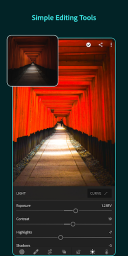
The first thing I noticed about Lightroom is how organized the editing experience feels. The interface is not empty, but it rarely feels chaotic. Tools are grouped in a way that makes sense: light, color, effects, detail, optics, masking, presets, crop, healing, and other adjustments sit where I expect them to be. That structure helps the app feel professional without becoming unfriendly.
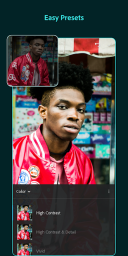
I like that Lightroom does not push me into one-click edits immediately. Presets are available, and they can be very useful, but the app also encourages slower adjustment. I can change exposure slightly, recover highlights, soften shadows, adjust temperature, or refine texture without feeling like I am fighting the interface. That kind of control is exactly why Lightroom appeals to serious mobile creators.
Editing Tools Give Photos a Natural Upgrade
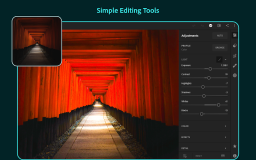
Lightroom’s core editing tools remain the main reason I would use it over many simpler photo apps. Exposure, contrast, highlights, shadows, whites, blacks, curves, color mix, grading, sharpening, noise reduction, and lens corrections give photos a level of polish that basic gallery editors usually cannot match. The difference is subtle but important.
What I enjoy most is that Lightroom lets me edit with restraint. I can make a dull image feel brighter without destroying the skin tones. I can give a landscape more depth without turning the sky into neon. I can shape the mood of a photo without making it look like every other over-filtered social media post. That balance makes the app feel reliable.
-
Light controls help correct exposure and contrast;
-
Color tools allow precise tone adjustments;
-
Detail settings improve sharpness and texture;
-
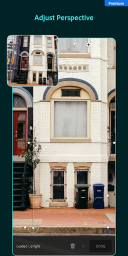
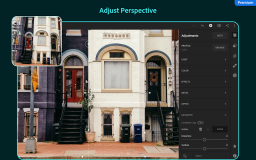
Optics tools help correct lens and perspective issues;
Presets Are Useful When They Do Not Take Over
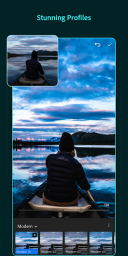
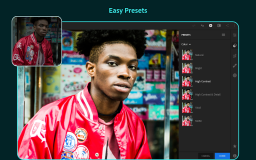
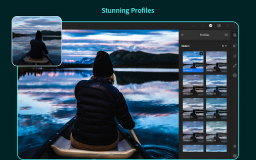
Presets are one of Lightroom’s most popular features, and I understand why. They make it easy to apply a consistent look quickly, especially for social media creators, bloggers, small businesses, and photographers who want a recognizable style. A good preset can save time and create visual consistency across a feed, portfolio, or campaign.
Still, I think presets work best as starting points, not final answers. Some presets can be too strong depending on lighting, skin tone, or camera quality. Lightroom’s advantage is that it lets me apply a preset and then adjust everything afterward. That makes presets feel flexible rather than restrictive.
AI Tools Make Difficult Edits Much Easier
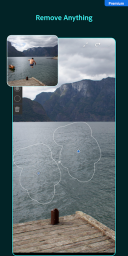
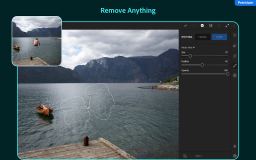
Lightroom’s AI features are now a major part of the app’s appeal. Generative Remove can help remove distracting objects from photos, while Lens Blur can add depth and subject emphasis by creating a portrait-style background effect. Adobe’s help documentation describes Generative Remove as Firefly-powered and available as a Premium feature on mobile, while Lens Blur uses AI-powered blur effects to add depth and bokeh-style emphasis.
What I like about these tools is that they solve common real-world problems. A good photo might be weakened by a sign, a power line, a random object, or a busy background. Lightroom gives me a way to fix those issues without moving into a complicated desktop workflow. The results still need checking, especially with complex backgrounds, but the convenience is impressive.
-
Generative Remove helps clean up distracting objects;
-
Lens Blur can create stronger subject separation;
-
Adaptive Presets speed up targeted edits;
-
AI tools reduce the need for multiple editing apps;
The Pro Camera Side Adds Creative Control
Lightroom is not only an editing app. Its camera tools are also useful for people who want more control before editing begins. Depending on device support, the app can give access to manual-style controls that help with exposure, focus, white balance, and capture settings. That makes it more appealing than a basic point-and-shoot camera app.
I find this especially useful when shooting with editing in mind. If I know a photo will need careful color or detail work later, I want a cleaner starting file. Lightroom’s camera side supports that mindset. It encourages users to think like photographers before they start moving sliders.
Color Grading Is Where Lightroom Feels Most Professional
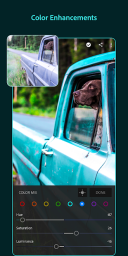
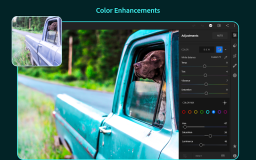
Lightroom’s color tools are where the app really earns its reputation. The ability to adjust hue, saturation, and luminance by color range gives me far more control than a typical filter app. I can make greens softer, blues deeper, oranges warmer, or skin tones more balanced without changing the entire image in a heavy-handed way.
Color grading also gives photos personality. A travel photo can feel warmer and more nostalgic. A city shot can feel cooler and sharper. A portrait can feel softer and more natural. Lightroom makes these changes feel precise rather than random, which is why it works so well for creators who care about a consistent visual identity.
Masking Makes Local Edits Feel Practical
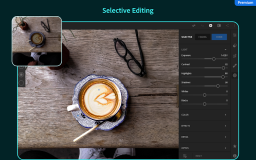
One of the biggest differences between basic editing and serious editing is local control. Lightroom’s masking tools allow adjustments to specific areas instead of the entire image. That means I can brighten a face, darken a background, enhance a sky, sharpen a subject, or adjust a selected area without damaging the rest of the photo.
This kind of editing is especially useful for portraits, product shots, travel images, and social media content. Global filters often make every part of a photo change equally, which can create messy results. Masking gives the edit more intention. It lets the photo breathe instead of being covered by one universal effect.
-
Subject masks help portraits stand out;
-
Sky adjustments can improve landscapes;
-
Background edits add depth and mood;
-
Local sharpening can guide the viewer’s eye;
Workflow Across Devices Is a Major Advantage
Lightroom works well for people who edit across multiple devices. Adobe’s mobile page notes that Lightroom is available on iOS and Android, and the broader Lightroom ecosystem supports editing across mobile, desktop, and web surfaces. That matters because many creators do not work in only one place anymore.
I like the idea of starting a quick edit on my phone, reviewing images on a tablet, and refining a project later on desktop. Even if not every user needs that workflow, it makes Lightroom feel more serious than a standalone mobile filter app. It fits into a broader creative system.
The App Is Strong for Social Media Creators
Lightroom is especially useful for Instagram creators, bloggers, influencers, marketers, and small brands that need consistent visuals. A creator can build a recognizable look through presets, color settings, crop ratios, and export habits. That consistency can make a feed or campaign feel more polished.
At the same time, Lightroom avoids the trap of making every photo look identical. Because the controls are detailed, a creator can keep a general style while still adjusting each image properly. That is important because different lighting situations need different treatment. A sunset, indoor portrait, flat lay, and product photo should not all be edited blindly with the same intensity.
Where Lightroom Can Feel Less Friendly
Lightroom is approachable, but it is not the simplest photo editor available. Someone who only wants funny stickers, bold beauty filters, or instant social templates may find it too serious. The app rewards patience and visual judgment. It is easy to make small improvements, but learning the deeper tools takes time.
The subscription structure may also be a consideration. Adobe states that the free mobile version includes access to presets and basic editing tools, while Premium unlocks features such as Generative Remove, Lens Blur, and Adaptive Presets. For frequent editors, that can be worth it. For casual users, the value depends on how often they use the advanced tools.
Why Lightroom Still Feels Essential
Adobe Lightroom remains essential because it sits in a useful middle space. It is more professional than most casual editing apps, but more accessible than a full desktop-only workflow. It gives me room to make a photo cleaner, moodier, sharper, softer, brighter, or more cinematic without forcing one trendy look onto everything.
The app is strongest when I want control. It helps with quick edits, but it also rewards careful ones. Whether I am adjusting a portrait, cleaning up a travel shot, preparing product photos, or building a consistent social media style, Lightroom feels like a tool that respects the image instead of simply covering it with effects.